
Share It puts your post in front of more pilots, with a link that brings them back.
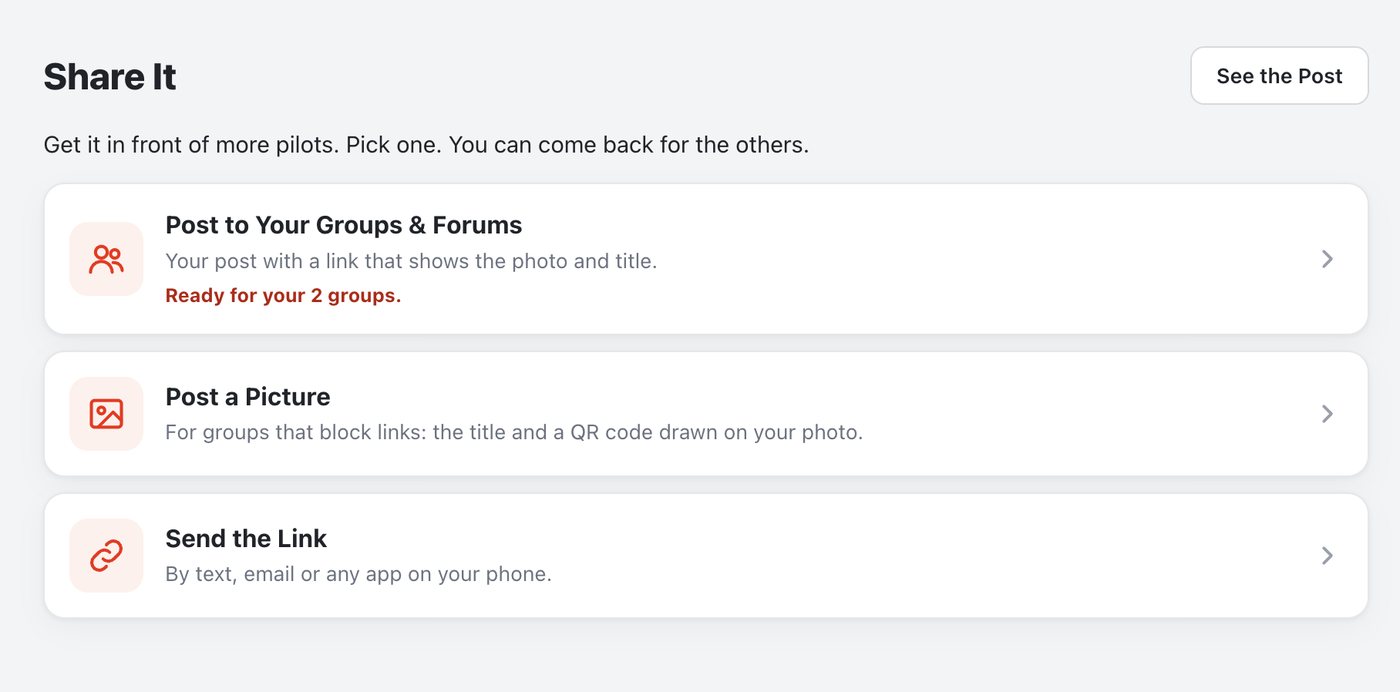
Share It opens by itself after you post. Later, tap Share on the post. There are three ways:
Post to Your Groups & Forums
Set your groups up once (see Your Groups and Forums), then each one is a tap:
- Tap Post in This Group. Your post's words are copied and the group opens.
- In the group, tap Write something.
- Press and hold in the box, then tap Paste.
- Wait for the picture. Then tap Post. Too soon and only the words go up.
- Come back to RCPilot and tap Yes, It's Posted. The group is checked off.
The words are yours to change in Your post before you copy them. Post Again and Not posted? sit beside a group already checked off.
Post a Picture
For groups that block links: one picture with your photo, the title, the RCPilot logo and a QR code back to the post. Tap Share Picture (or Copy Picture) or Save Picture, then Copy Words for the text, and post them together in the group.
Send the Link
Copy Link, Text Message, Email, or Another App on your phone.
The picture your link shows
A shared link shows a wide share card: your first photo, and beside it the RCPilot logo, the world, the title and your name. A build story's card shows its photos and its chapters. A post with no photo of its own uses the picture of the link in its words, such as an article's banner. Your browser draws the card on Share It right after you post, and again on the post after an edit.
RCPilot also lets Facebook read your post ahead of time, so the preview is ready when you paste the link, even in the Facebook app on a phone.